Getting your print files right before you send them through saves a lot of back-and-forth. Large format printing has a few quirks that catch people out, especially if you’re more used to preparing files for standard A4 or screen output.
Set Up Your File at the Right Resolution
This is where most large format jobs go wrong before they’ve even started.
Screen resolution is 72 DPI. Print needs more. For large format work, the rule of thumb is 100 to 150 DPI at final output size. If your banner is going to print at 1200mm x 2400mm, set your document up at those exact dimensions in your design software and work at 100 to 150 DPI from the start.
A common mistake is building a design at A4 size and then scaling it up. A 72 DPI image that looks sharp on screen will print soft and pixelated at 3 metres wide. There’s no fixing that at the print stage.
If you’re unsure what resolution to set, give us a call before you start. It’s a two-minute conversation that saves you rebuilding the file from scratch.
Use the Right Colour Mode
Design files for screens use RGB. Print uses CMYK. They’re different colour spaces, and the colours don’t translate directly.
Set your file to CMYK before you start designing. If you build in RGB and convert later, colours can shift, particularly bright blues, greens, and oranges. What looks vivid on screen can come out flat in print.
Spot colours are worth a separate mention. If your brand has a specific Pantone colour, match it correctly in CMYK. Pantone 485 (a strong red) converts to approximately C0, M100, Y100, K0 – but the right conversion depends on the substrate and ink. If brand colour accuracy matters for your job, talk to us about it upfront.
Include Bleed and Trim Marks
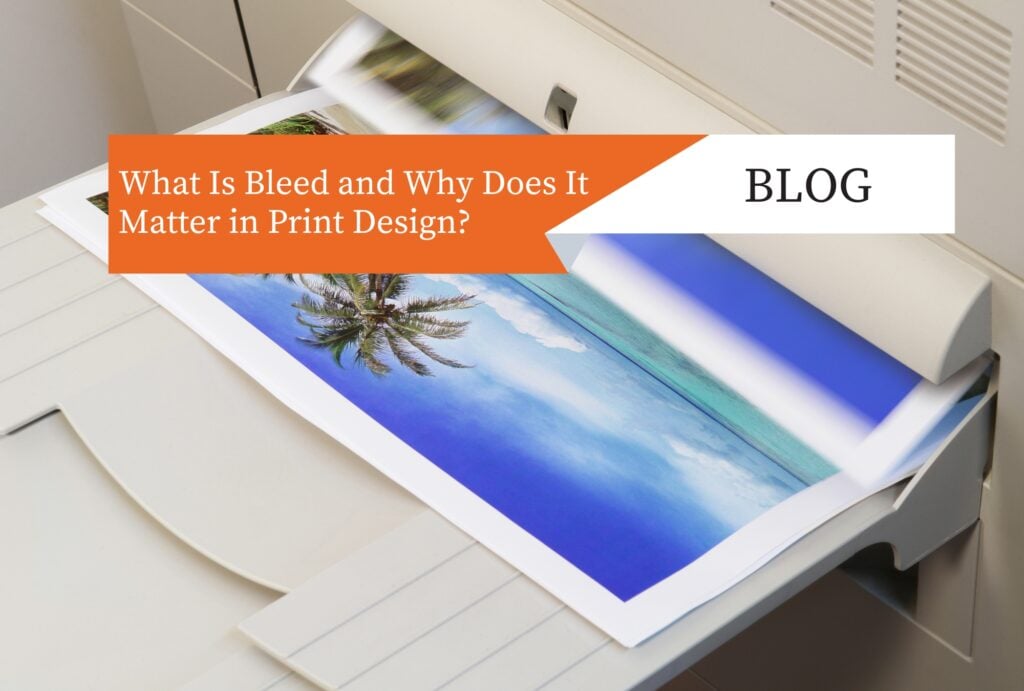
Bleed is the extra border of artwork that extends beyond your finished cut line. Without it, you risk a thin white edge appearing along the trim if the cut shifts even slightly.
For most large format work, 3mm to 5mm of bleed on each edge is standard. Set this up in your document settings. Keep any text or logos at least 5mm inside the trim line so nothing important gets cut off.
Trim marks (also called crop marks) show us exactly where the final cut should be. Include them in your export settings. In Adobe Illustrator or InDesign, this is a checkbox in the PDF export panel – it takes five seconds.
How to Package and Send Your Files
- Use Print-Ready PDFs Where Possible
A PDF/X-1a or PDF/X-4 export is the most reliable format for large format files. It flattens transparency, embeds fonts, and locks in your colour settings.
If you’re exporting from Illustrator or InDesign, select “Press Quality” as your PDF preset and then adjust bleed and marks settings from there.
Avoid sending native files (AI, INDD, PSD) unless we’ve specifically asked for them. Native files can have missing links, unembedded fonts, or software version issues that create delays.
- Embed or Outline Your Fonts
Fonts are one of the most common causes of file problems. If we open your file and a font is missing, it gets substituted with something else and the layout breaks.
Two ways to handle this:
- In your PDF export settings, make sure fonts are embedded
- Alternatively, convert all text to outlines before exporting (in Illustrator: Type > Create Outlines)
Once text is converted to outlines, it becomes a shape, it can’t be edited, but it can’t go missing either.
- Check Your Links
If your file uses placed images (rather than embedded ones), those images need to come with the file. In InDesign, use the Package function (File > Package) to collect everything in one folder. In Illustrator, embed your linked images before export.
Sending a file with a missing 20MB background image is a very common problem. The Package function exists precisely to stop this happening.
File Naming Saves Everyone Time
Label your files clearly. Something like:
ClientName_JobDescription_v2_PRINT.pdf
Avoid generic names like Final.pdf, New version.pdf, or – genuinely seen more than once – Final use this one.pdf. When we’re managing multiple jobs, clear file names reduce errors and speed up turnaround.
If you’re sending a revision, increment the version number. Keep your old versions in a separate folder so you know which is current.
Common File Issues We See
A few things that regularly add time to jobs:
Low-resolution images. Stock photos downloaded at web resolution (72 DPI, small file size) look terrible at large format. Buy the largest available file size from your stock library, or source images at a minimum of 300 DPI at the size you intend to use them.
RGB files submitted for print. Easy to miss if you’ve built the file without checking your document colour mode settings.
Missing bleed. Design software won’t add bleed automatically. You have to set it in your document setup.
Incorrect substrate dimensions. A banner for a 3000 x 1500mm space needs to be set up at exactly those dimensions. If you’re unsure of the final size, confirm it before building.
Text too close to the edge. Even with bleed set correctly, text sitting 1mm inside the trim line is a risk. Give yourself 5mm minimum.
What to Send Us
When your file is ready, here’s what we need:
- Print-ready PDF (PDF/X-1a or PDF/X-4 preferred)
- CMYK colour mode
- Correct final dimensions including bleed
- Trim marks included
- Fonts embedded or converted to outlines
- All images embedded and at print resolution
If you’re not sure whether your file is ready, we’re happy to do a preflight check before the job goes to print. Just let us know.
For large or complex jobs, we also offer a design review service, worth using if the artwork is going on something that can’t be easily reprinted.
Got a file question before you start? Call the team at Jennings Print or send your file for a preflight check. We’d rather catch issues early than have you waiting on a reprint.